Cartful Quickstart
A 5-minute walkthrough from the landing page to a finished shopping trip. Cartful is built phone-first, but everything works in a desktop browser too.
1. Open the app
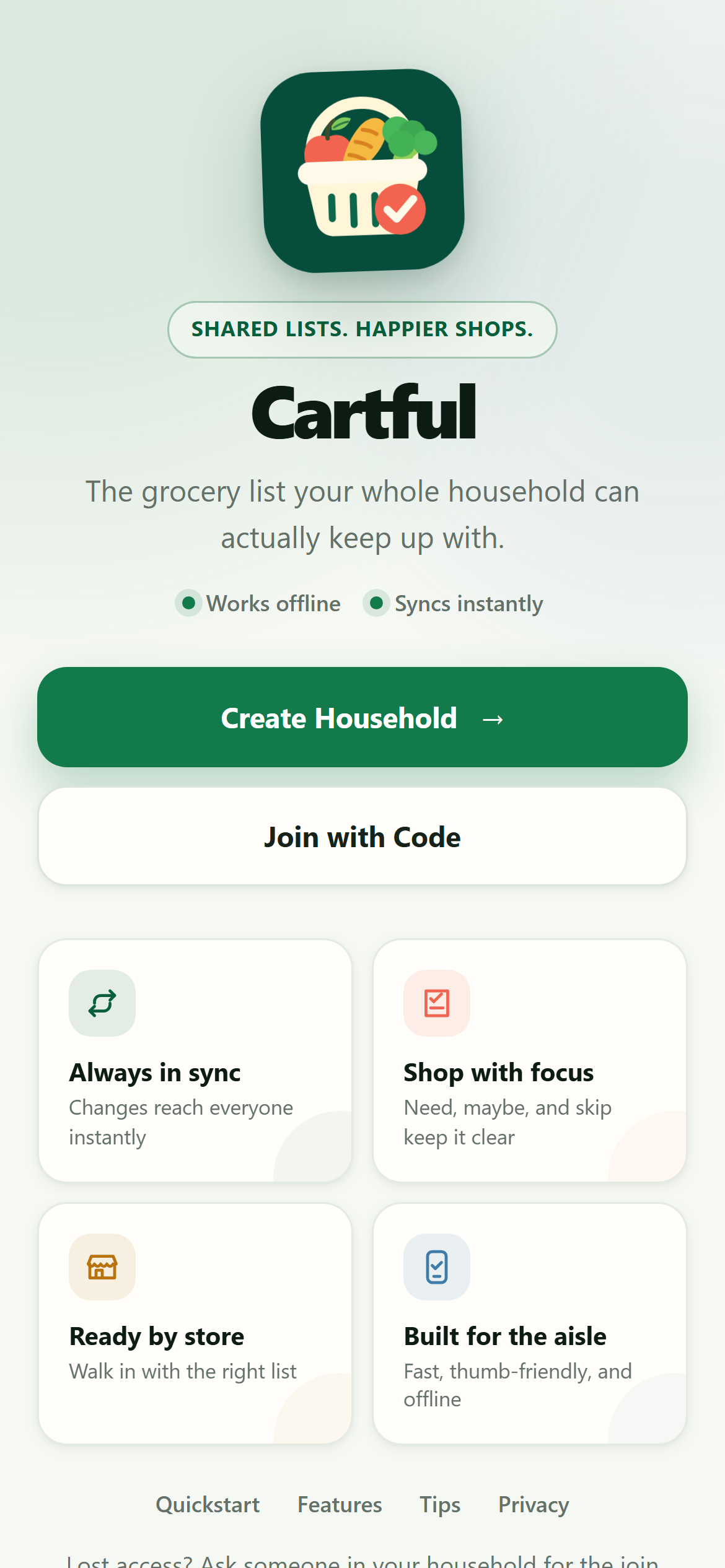
Open Cartful on your phone. From the welcome screen you can either create a household to start fresh, or join with a code if a family member has already set one up.
2. Create a household
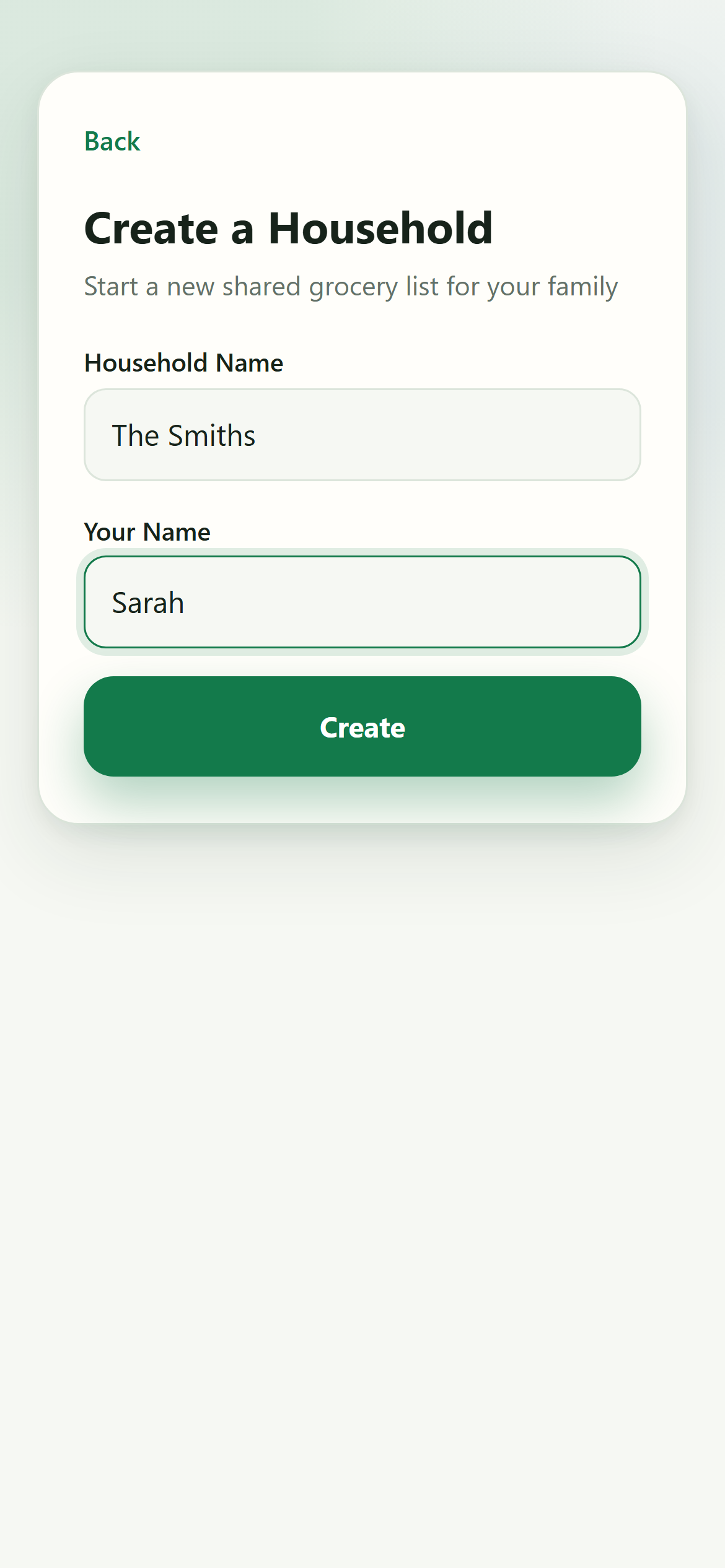
Tap Create Household, then enter your household name and the name you want to use inside the app. Tap Create and you are in.
3. Meet the dashboard
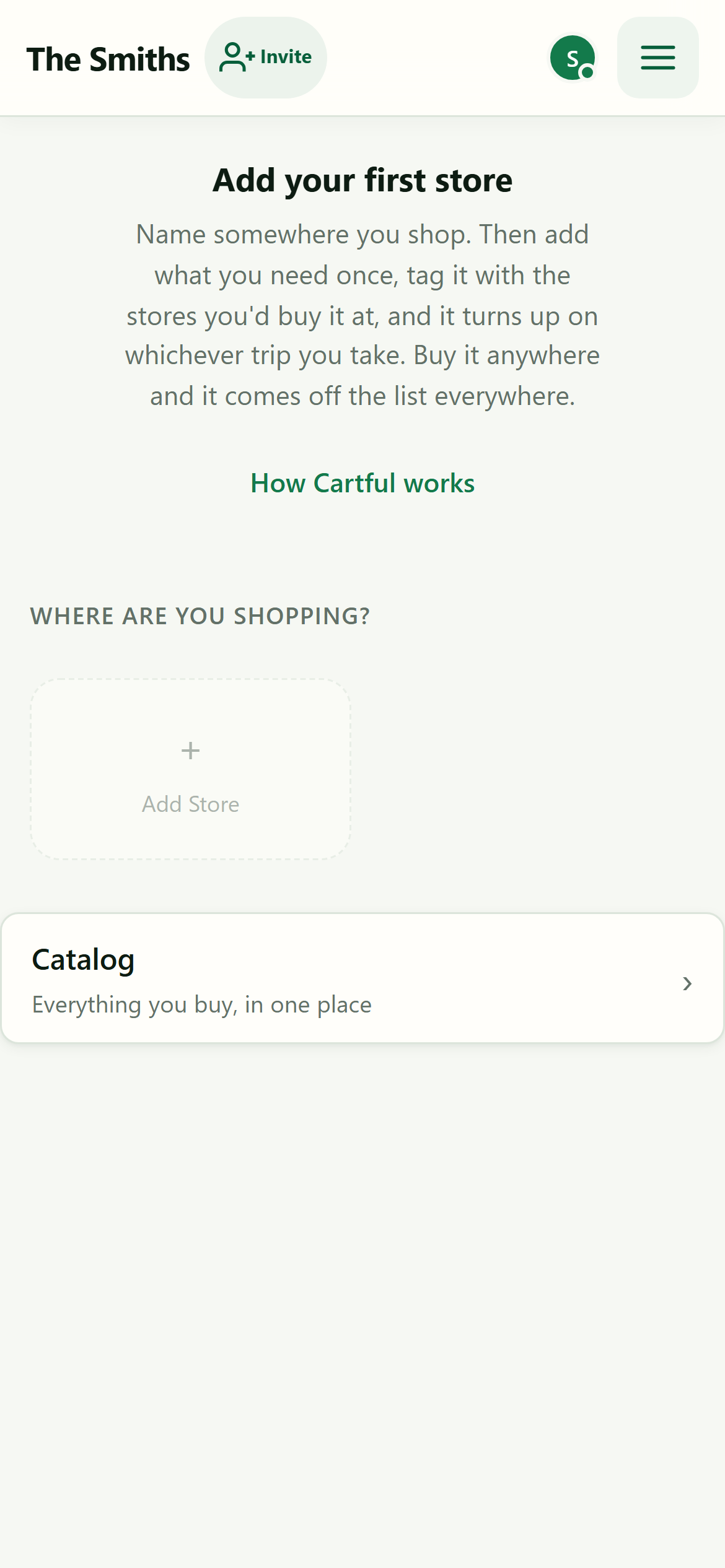
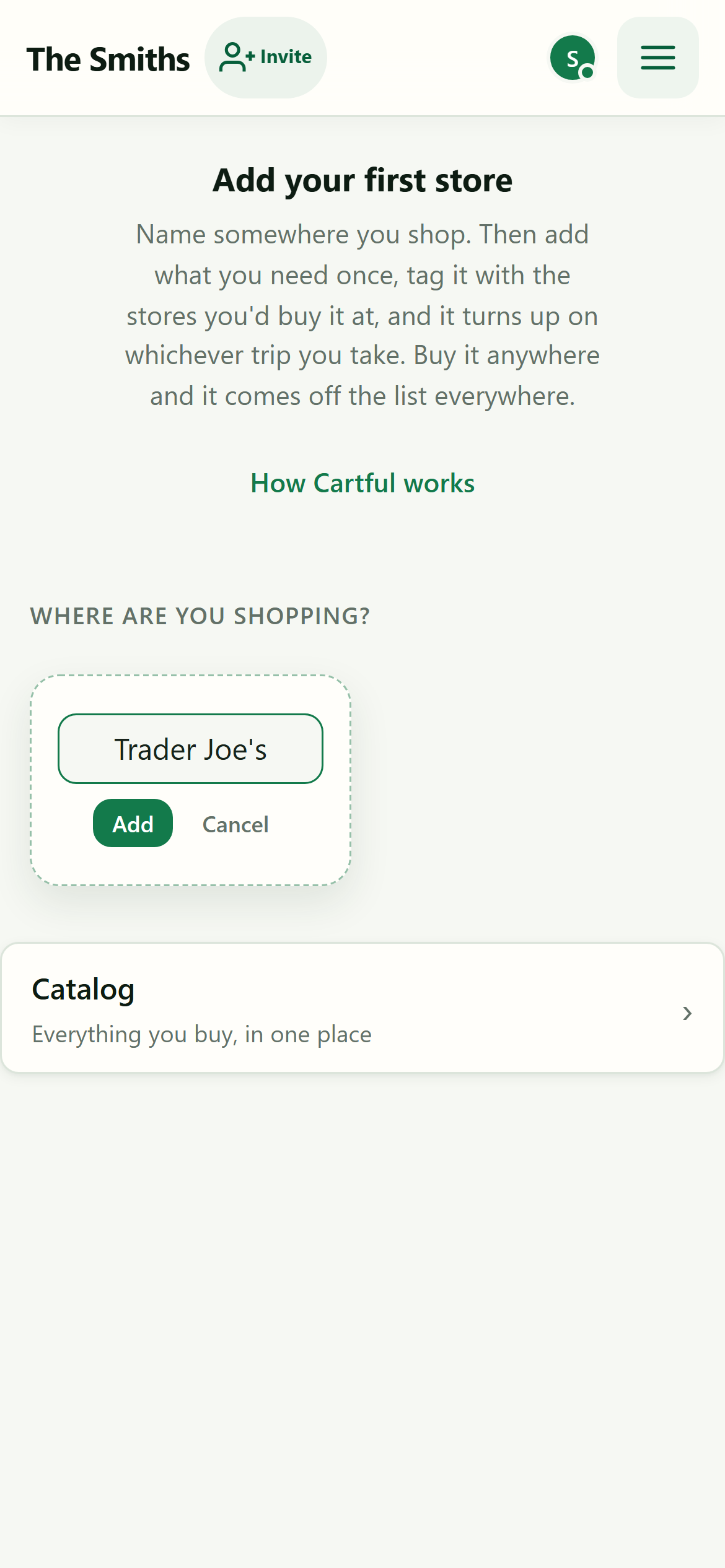
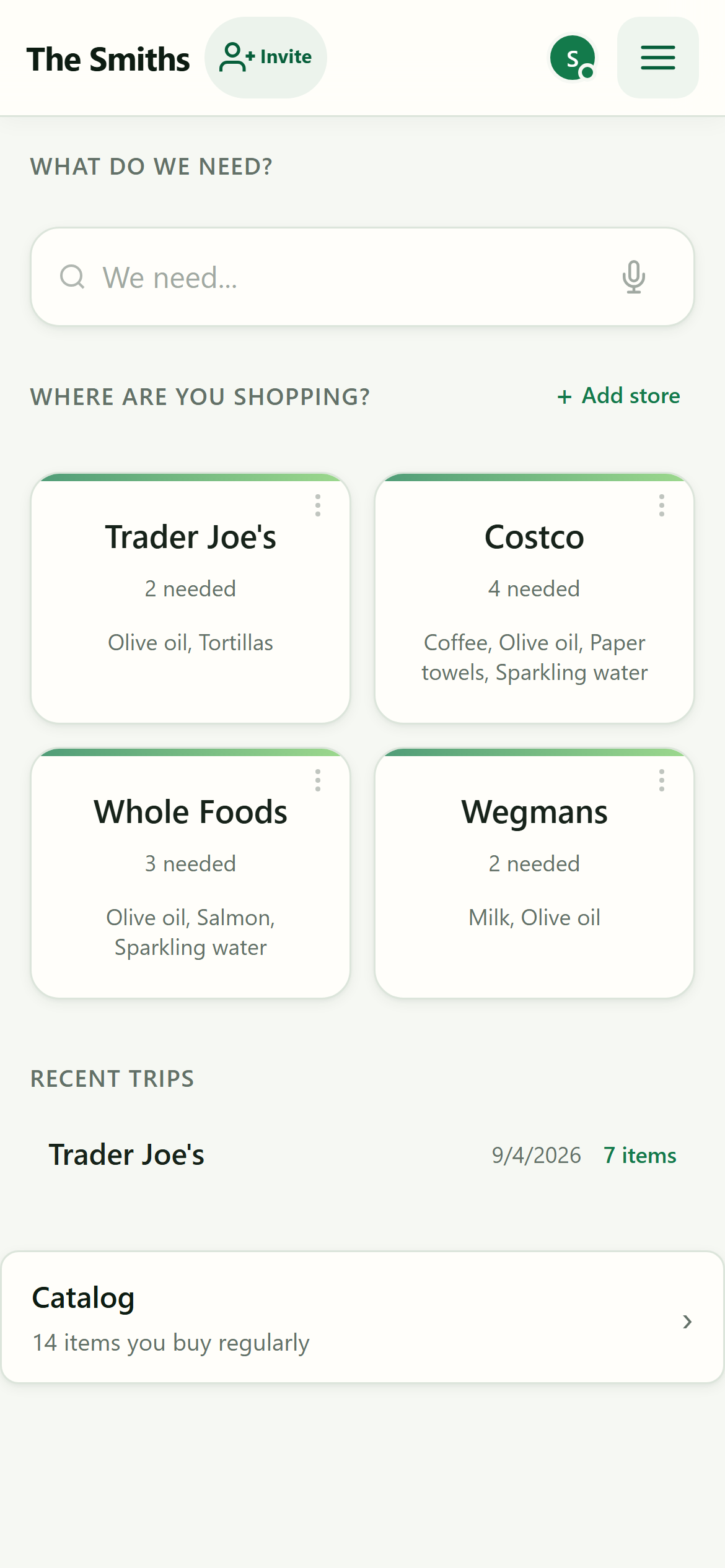
A brand new household opens on Add your first store, because Cartful keeps a list per store. Once a store exists the dashboard settles into its normal shape: What do we need? at the top for adding, Where are you shopping? below it with a card per store, and a Catalog row for everything you buy.
4. Invite your household
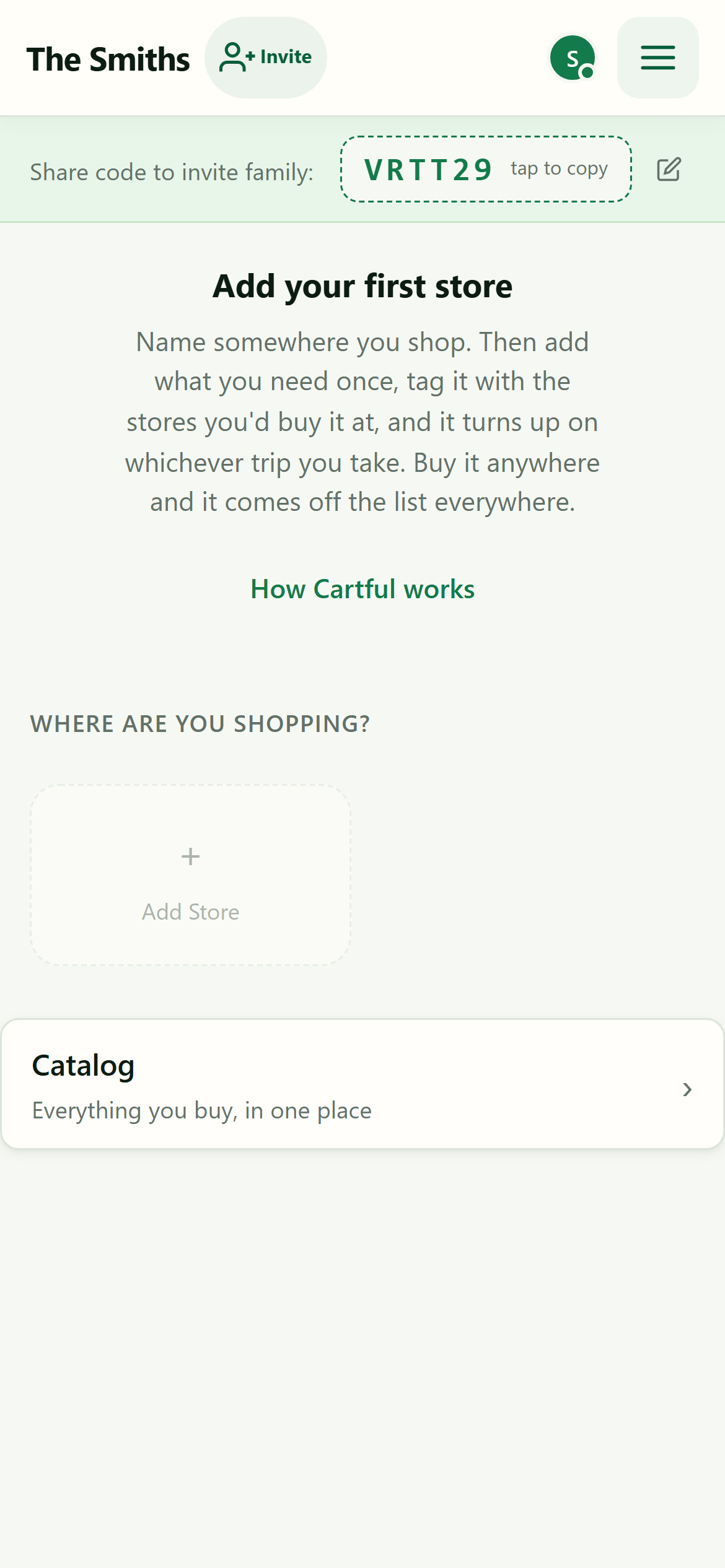
Tap the invite icon to reveal your household join code. Send it to anyone you want to share the list with. Once they join, changes sync live across your phones.
5. Add a store
Tap + Add Store, type a store name, and tap Add. You can add any places you shop, and items can be available at more than one store.
6. Add items to your catalog
Type into We need.... Existing items can be recalled, and new items get an auto-detected category plus chips for the stores you buy them at. Cartful confirms where each one landed, for example Added "milk": needed at any store. Leave the chips alone and the item counts at every store, including ones you add later.
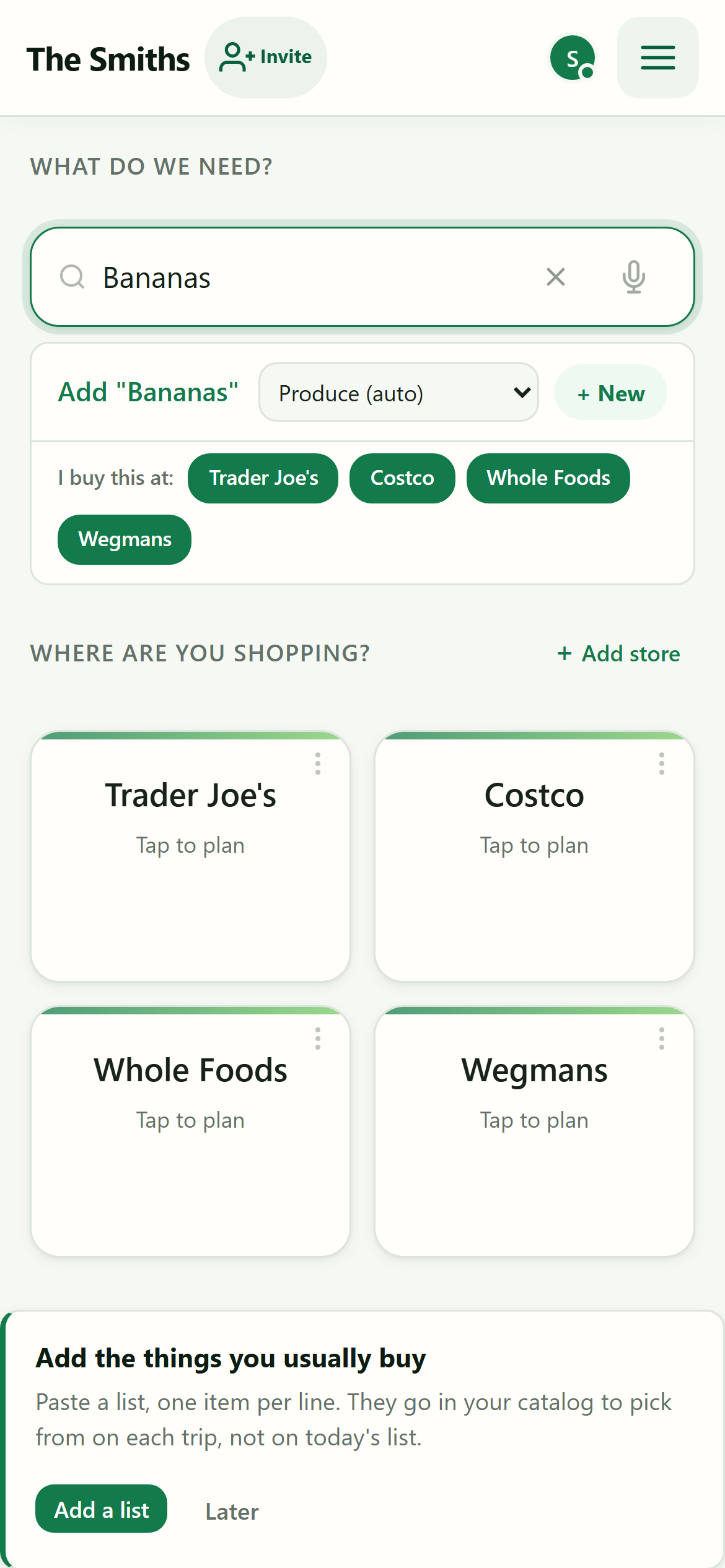
Tip: if your phone supports it, tap the mic button and say things like "we need eggs" or "out of milk".
7. Review the catalog
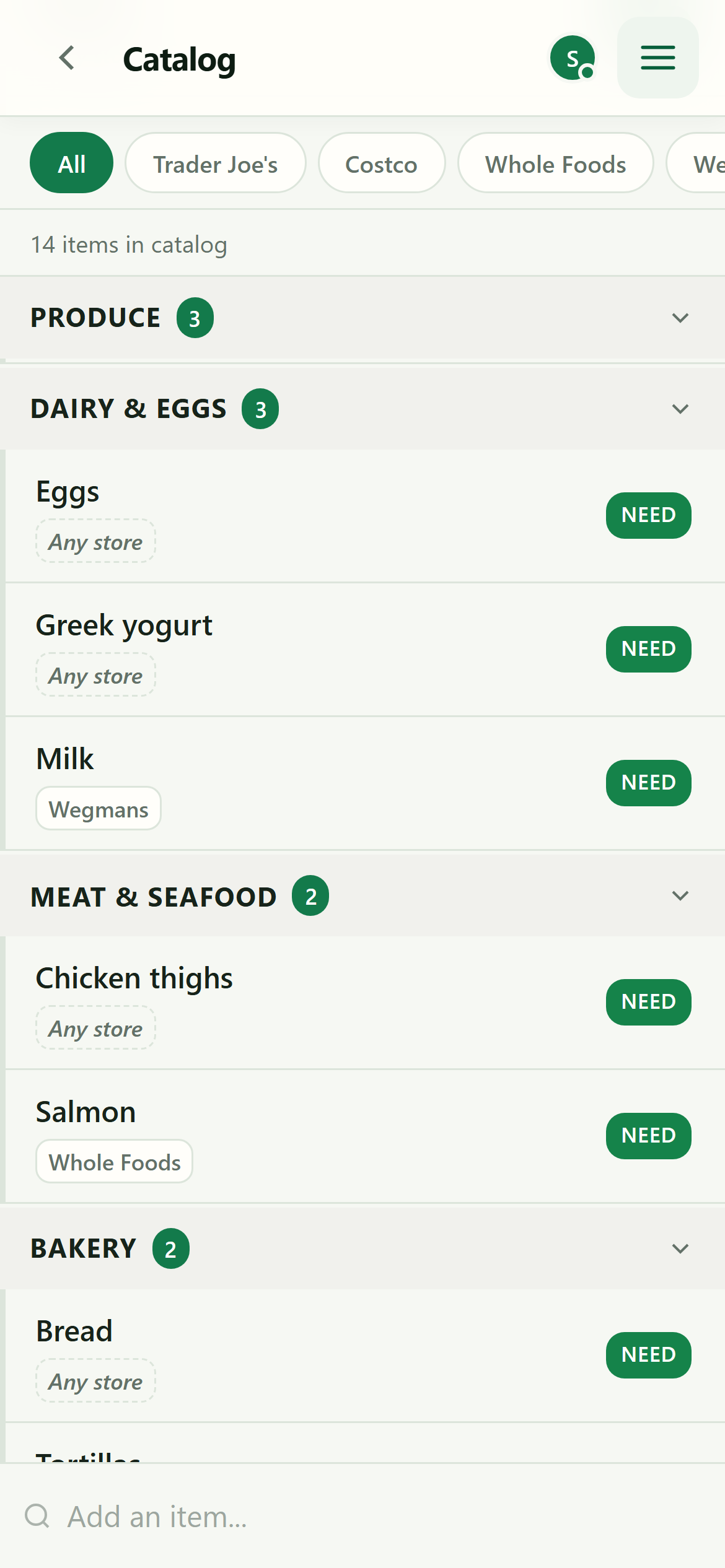
Open the menu and tap Catalog to see your reusable catalog, grouped by category. Items stay here between trips so you do not have to rebuild your list.
8. Plan a trip
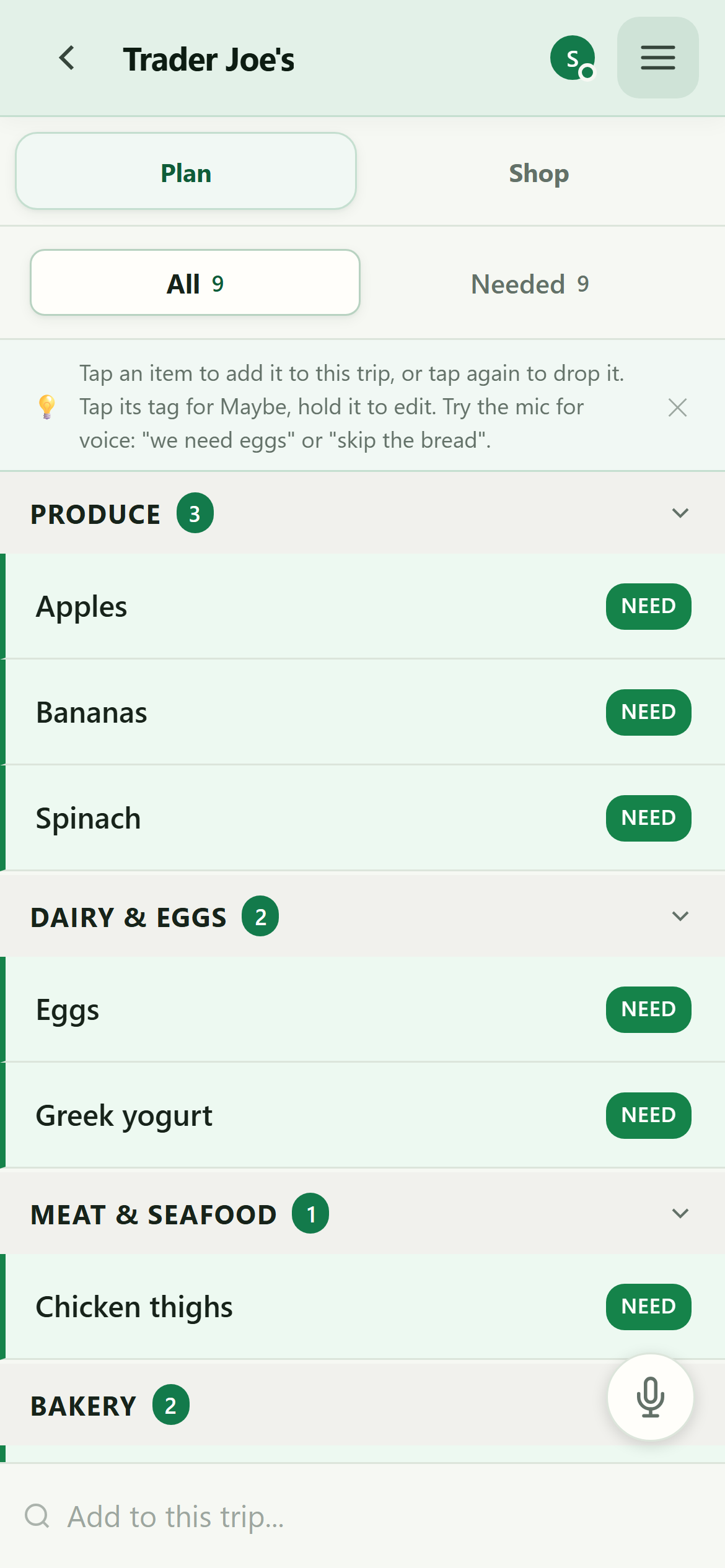
Back on the dashboard, tap a store card to start a trip. Plan mode is where you decide what you actually need this time.
- Tap an item to add it to this trip, or tap again to drop it. Tap its tag for Maybe.
- Hold an item to edit it. Swiping works too: right for Need or Maybe, left to drop.
- Use the bottom search bar to add something new.
9. Switch to shopping
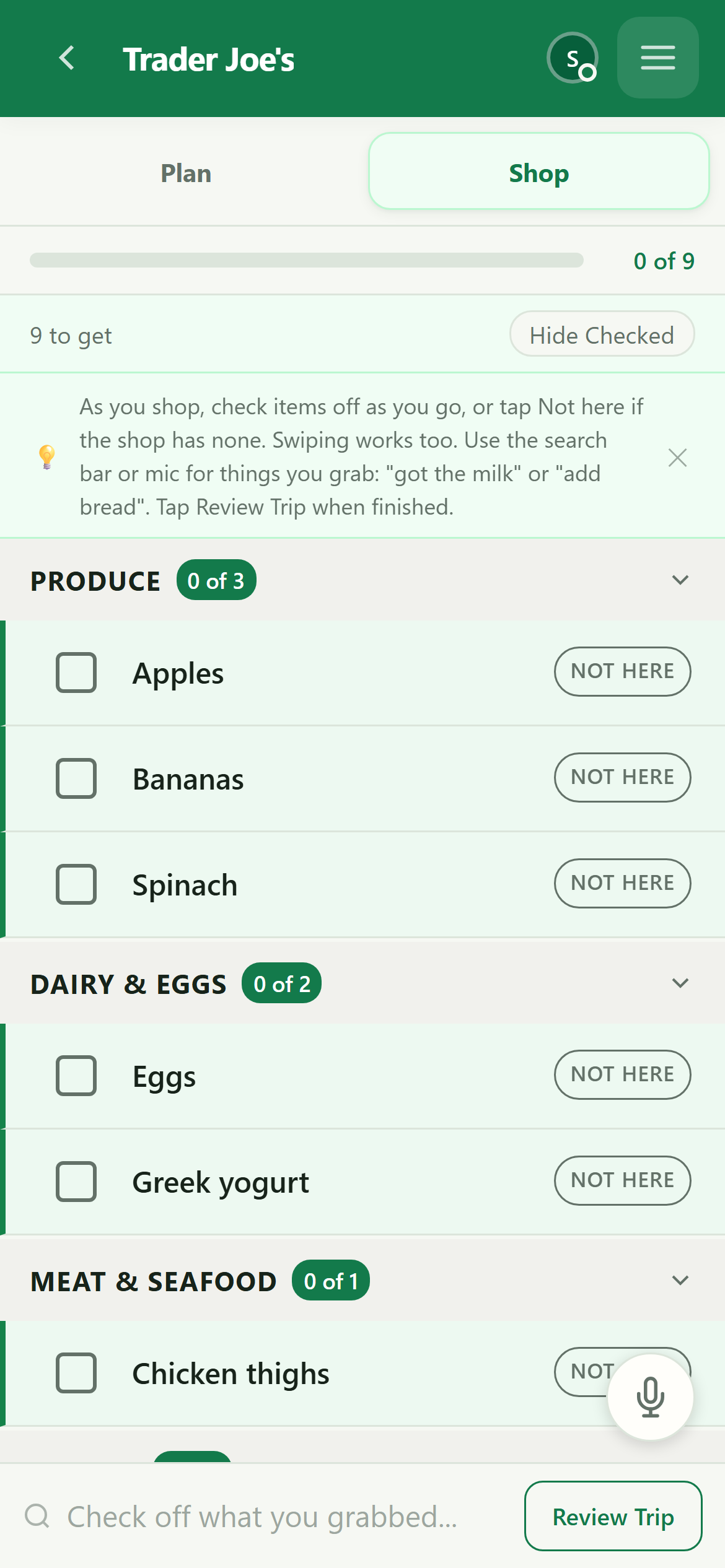
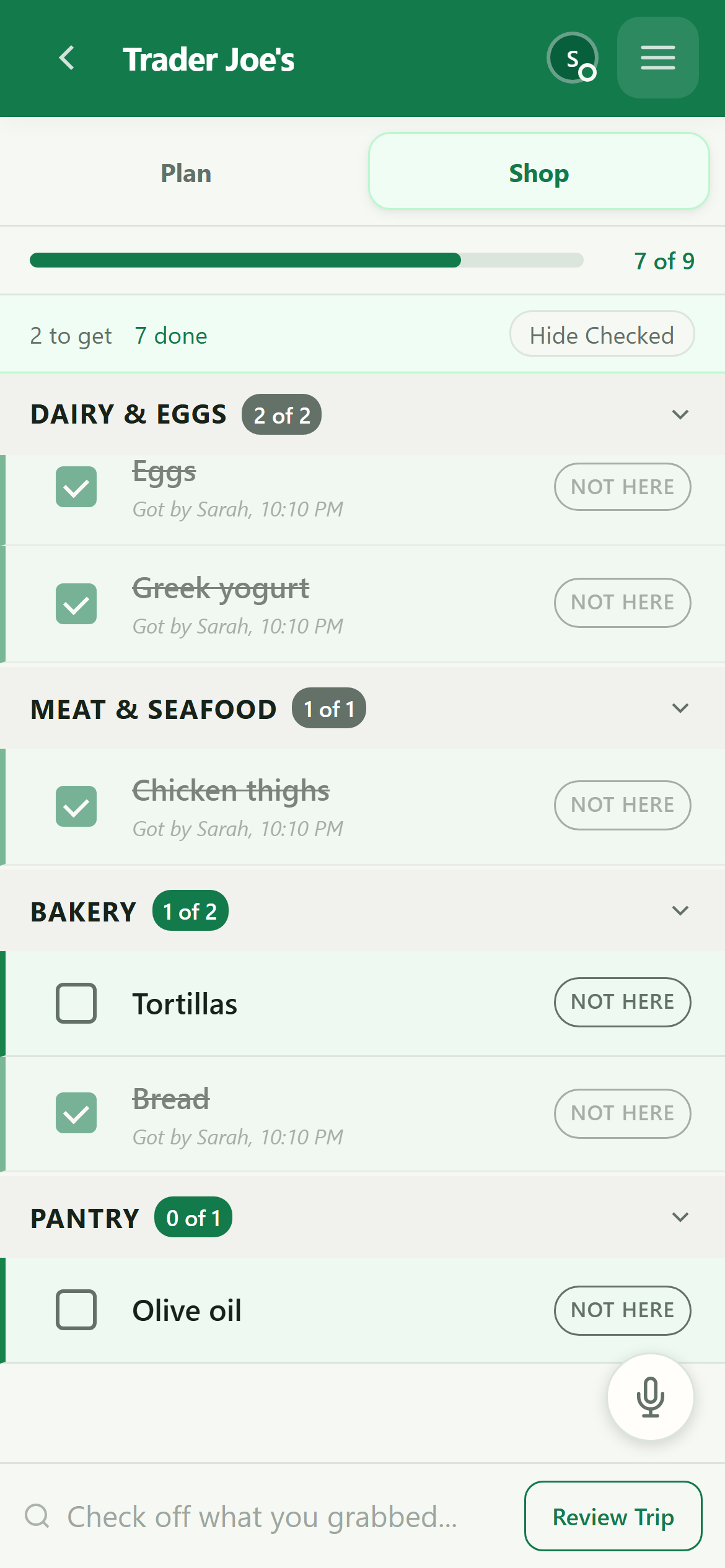
At the store, tap the Shop tab. Check items off as they go into your cart, or tap Not here if the shop has none. Swiping works too. Something marked Not here stays on your list for next time, it just stops counting toward this trip.
10. Finish the trip
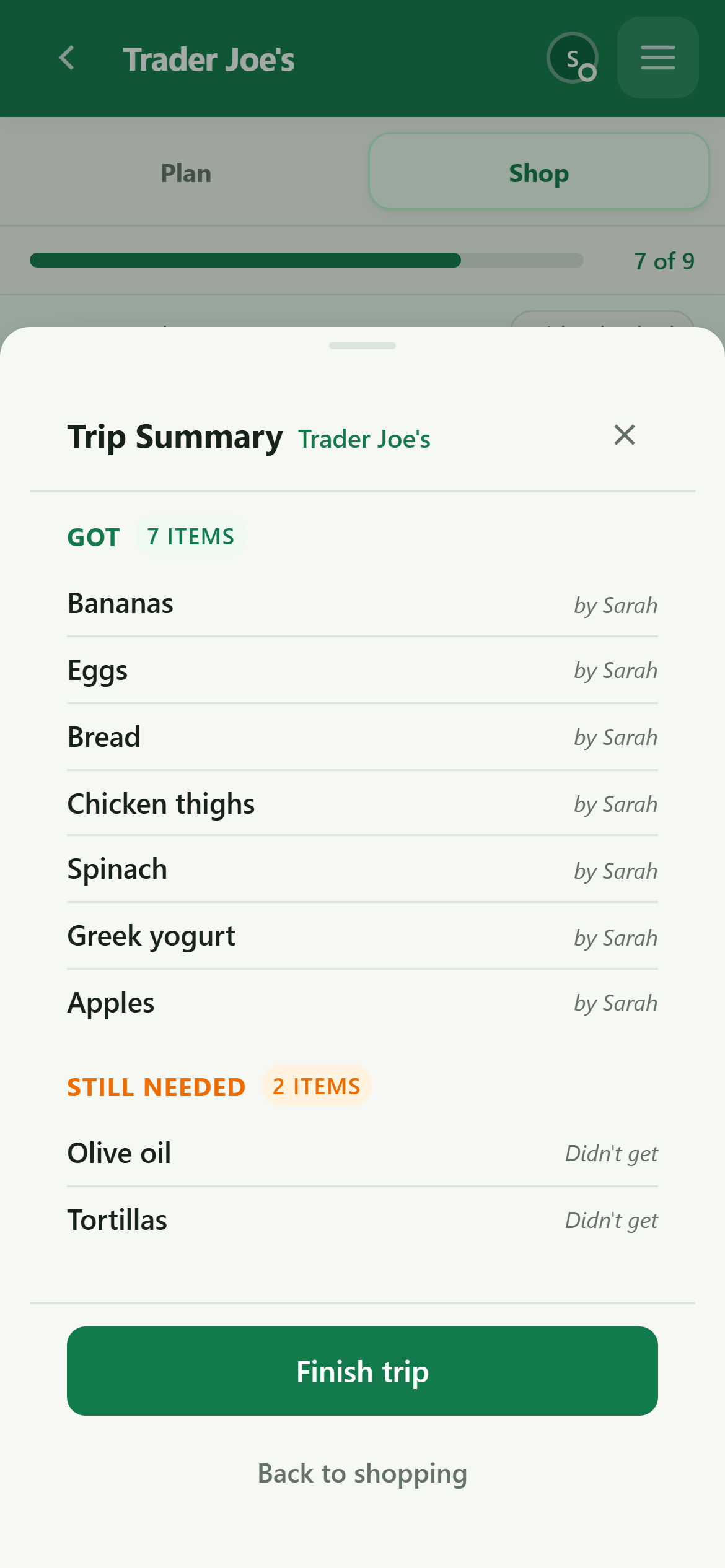
When you are done, tap Review Trip. You will see what you got, what is still needed, and who picked things up. Tap Finish trip to wrap up.
What is next
You now know the full loop: add, plan, shop, review. From here, explore photos, notes, voice commands and offline shopping. If you ever lose the join code, any other member can tap Invite and share it again.
Need help?
Email cartful@aloedesk.com and we will get back to you. If something looks wrong in your household's list, tell us the household name and roughly when it happened.